How to transfer QuickBooks to a new computer from an old computer
Learn how to safely move QuickBooks Desktop from an old computer to a new one using backup and migration methods.
 Booksmerge
Switching computers is exciting until you remember everything tied up in QuickBooks — years of transactions, memorized reports, payroll setups, and a license you don't want to lose track of. If you're staring at a new machine wondering how to transfer QuickBooks to a new computer from an old computer without breaking anything, you're not alone. This is one of the most searched QuickBooks questions, and thankfully, one of the most solvable.
This guide covers every reliable path — from Intuit's built-in migration tool to manual backup-and-restore — so your data moves over completely intact.
Why This Process Trips People Up
- Uncertainty About What Actually Transfers — Users often don't realize the company file, license, and program installation are three separate things that all need handling.
- Missing License or Product Numbers — Without these, reinstalling QuickBooks Desktop on the new machine stalls immediately.
- No Installation Disk Available — Many older QuickBooks purchases came on physical media that's long since been lost, leaving people unsure how to install QuickBooks on new computer without disk.
- Fear of Losing Historical Data — Years of invoices, payroll records, and reconciliations feel too important to risk on a manual transfer.
- Old Computer No Longer Boots — Sometimes the "old computer" is already failing, adding urgency and limiting available transfer methods.
Before You Begin: What You'll Need
- Your QuickBooks License and Product numbers
- A USB flash drive (minimum 250MB free space) or reliable cloud storage
- Administrator access on both computers
- A stable internet connection for downloading QuickBooks if reinstalling fresh
Method 1: Use the QuickBooks Migration Tool
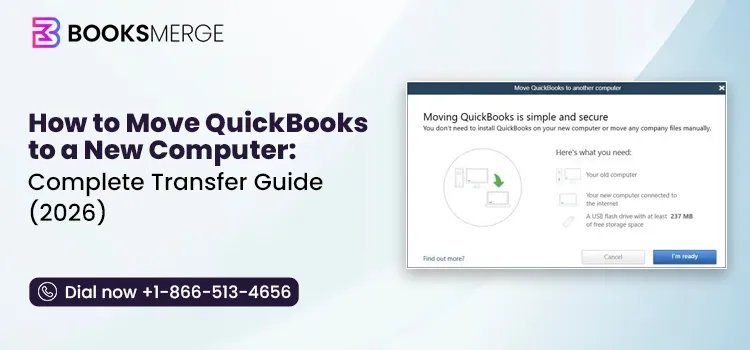
This built-in tool is designed specifically to move QuickBooks Desktop to another computer with minimal manual work.
On the Old Computer
- Open QuickBooks Desktop and sign in as admin.
- Go to File > Utilities > Move QuickBooks to another computer.
- Click I'm Ready, then set a one-time password (write this down).
- Insert your USB drive and select it as the save location.
- Click Continue to let the tool package your company file, program files, and license data.
On the New Computer
- Insert the same USB drive.
- Open it and run Move_QuickBooks.bat.
- Enter your one-time password when prompted.
- Select an installation folder and click Let's Go.
- The tool installs QuickBooks Desktop and restores your company file automatically.
Method 2: Manual Backup and Reinstall
Use this approach if the migration tool isn't accessible or the old computer is having hardware trouble.
Step 1: Find Your License Information
- On the old computer, open QuickBooks.
- Press F2 to open the Product Information screen.
- Write down the License and Product numbers exactly as shown.
Step 2: Back Up the Company File
- Go to File > Back Up Company > Create Local Backup.
- Select a save location (external drive or cloud folder).
- Click Save it now and wait for the backup to finish.
Step 3: Reinstall QuickBooks Desktop on the New Computer
- Download the correct QuickBooks Desktop version from Intuit's official site.
- Run the installer and select Custom and Network options.
- Enter your License and Product numbers when prompted.
- Complete setup and open the program.
Step 4: Restore the Company File
- Go to File > Open or Restore Company > Restore a backup copy > Local backup.
- Browse to your saved .qbb file.
- Choose where to save the restored file and click Save.
For QuickBooks Online Users
If your business runs on QuickBooks Online rather than Desktop, there's nothing to physically transfer. Just log in to your account from the new computer's browser, and your company data, reports, and user settings are already waiting for you in the cloud.
Prevention Tips
✅ Record your License and Product numbers somewhere safe before the old computer is retired
✅ Back up your company file immediately before starting any transfer
✅ Confirm the new computer meets QuickBooks Desktop's minimum system requirements
✅ Deactivate the license on the old computer once the transfer is verified successful
✅ Test opening the company file fully on the new computer before disposing of the old one
✅ Keep a second backup copy in cloud storage as insurance during the move
Conclusion
Whether you use the automated migration tool or a manual backup-and-restore approach, moving QuickBooks from an old computer to a new one is a well-supported process when you prepare properly. Recording your license details, backing up your company file, and confirming system requirements ahead of time are the difference between a smooth transition and a stressful one. Follow the steps above, and your new computer will be fully operational with all your QuickBooks data intact.
Frequently Asked Questions
1. Can I move QuickBooks Desktop from one computer to another for free?
Yes, the migration tool and manual backup method are both included with your existing QuickBooks license at no extra cost.
2. How to reinstall QuickBooks Desktop on a new computer if I don't have the installer?
Download it directly from Intuit's official website using your License and Product numbers.
3. What if my old computer won't turn on?
If you have a recent cloud or external backup of the company file, you can still restore it on the new computer even without access to the old one.
4. Will transferring QuickBooks Desktop affect report or transaction history?
No. A properly restored company file retains all historical transactions, reports, and reconciliations.
5. Can I install QuickBooks Desktop on two computers with one license?
This depends on your license type; single-user licenses generally allow installation on one active computer at a time.
6. Does QuickBooks Online require any transfer steps at all?
No, since QuickBooks Online is cloud-based, simply signing in from the new computer gives full access to your existing data.