
OST to PST Conversion Explained for Outlook Users
Learn everything you need to know about OST to PST conversion for Outlook. Our step-by-step guide will help you seamlessly transfer your data and keep your email organized.
 vSoftware
Introduction to OST and PST files
In the world of Microsoft Outlook, two file formats stand out: OST and PST. If you’ve ever used Outlook for managing emails, you might have encountered these terms. But what exactly do they mean? And why does it matter to you as an Outlook user?
OST (Offline Storage Table) files allow users to work with their email data even without a connection to the internet. On the other hand, PST (Personal Storage Table) files serve as a backup or archive solution for your valuable emails when you need them offline or wish to transfer them elsewhere.
As versatile as both file types are, there comes a time when converting OST files into PST format becomes essential. Whether you're facing issues with synchronization or simply looking for more flexibility in handling your email data, understanding how this conversion works is crucial.
Let’s dive into the details of OST to PST conversion and explore methods that can make this process smooth and efficient for all Outlook users.
Why do you need to convert OST to PST?
Converting OST to PST can be essential for various reasons. One primary reason is accessibility. While OST files are tied to an Exchange server, PST files provide more flexibility. You can open them on different systems without needing a network connection.
Data recovery is another key factor. If your OST file becomes corrupted or you face issues with the Exchange server, having a PST backup ensures that your important emails and contacts remain intact.
Moreover, migrating data from older versions of Outlook often necessitates this conversion. Upgrading means needing compatible formats for all your existing information.
Users who switch email providers may find themselves in need of converting their data into a universally accepted format like PST to ensure smooth transfers and continued access to crucial correspondence.
Methods for OST to PST conversion
When it comes to OST to PST conversion, users have options. The choice often depends on individual needs and technical expertise.
One popular approach is the manual method. This involves using Microsoft Outlook’s built-in features. Users can export items from an OST file directly into a new PST file. While this method is accessible, it requires careful attention to detail to avoid data loss.
On the other hand, automated methods using third-party software are gaining traction. These tools simplify the conversion process significantly. They offer user-friendly interfaces and various additional features like batch processing and data recovery options.
Each method has its pros and cons, making it essential for users to assess which fits their situation best before proceeding with any conversion task.
Manual method
The manual method for converting OST to PST is a straightforward process, but it requires attention and patience. First, open your Outlook application. Make sure you have a backup of your data before proceeding.
Next, navigate to the 'File' menu and select ‘Open & Export.’ Choose the option labeled 'Import/Export.' This will launch the Import and Export Wizard.
From here, select ‘Export to a file’ and click ‘Next.’ You'll see different formats; choose ‘Outlook Data File (.pst).’ Now, pick the OST account or folder that you wish to convert.
Afterward, designate a location on your computer where you want to save the new PST file. Complete the export process by clicking 'Finish.'
While this method seems simple enough, it may not retrieve all items seamlessly. Be prepared for potential data loss or errors during conversion.
Automated method using third-party software
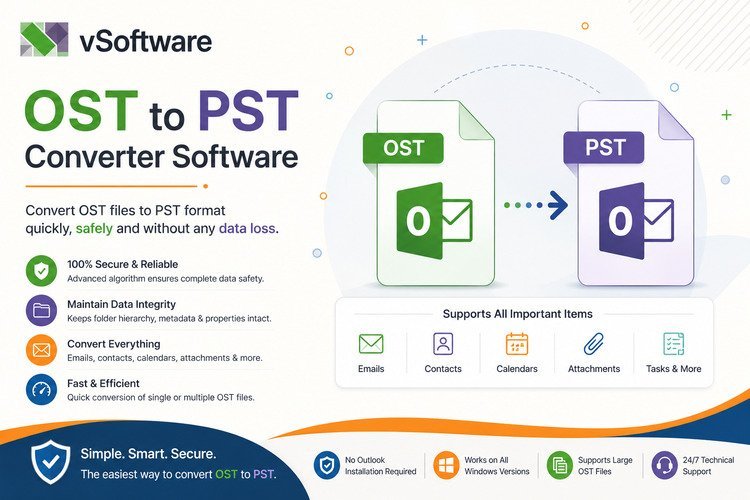
Automated methods for OST to PST conversion offer a streamlined solution, especially for users with large files. These third-party software tools are specifically designed to handle the complexities involved in converting email formats.
Using such software is often straightforward. Users typically need to install the application, select the OST file, and then choose PTS as their desired output format. The process usually involves just a few clicks.
Most of these tools come packed with features like batch conversion and selective data migration. This flexibility allows users to pick specific folders or emails they wish to convert without unnecessary clutter.
Additionally, many applications provide previews before finalizing the conversion. This ensures that no important information gets lost during the transition from OST to PST format.
Security is another consideration; reputable software options often include encryption features to protect sensitive data throughout the process.
Factors to consider when choosing a conversion tool
When selecting a conversion tool for OST to PST, consider compatibility first. Ensure the software supports your Outlook version and can handle different file sizes efficiently.
Next, look into user-friendliness. A straightforward interface makes the process smooth and reduces errors during conversion.
Check for features like batch processing or selective conversion; these can save time if you have multiple files to convert.
Reliability is crucial too. Look for tools with positive reviews or ratings from other users to gauge performance.
Don’t forget about customer support options. Good technical assistance can be invaluable if you encounter issues during the conversion process.
Analyze pricing models carefully. Some tools offer one-time purchases, while others operate on subscriptions. Choose what fits best within your budget without compromising quality.
Benefits of converting OST to PST
Converting OST to PST offers numerous advantages for Outlook users. One significant benefit is data accessibility. PST files are more compatible with various platforms and email clients, ensuring you can access your emails anytime.
Another advantage lies in data recovery. If your OST file becomes corrupted, converting it to PST helps safeguard important information, allowing for seamless retrieval of lost emails or attachments.
Additionally, managing storage space is easier with PST files. They allow users to archive old messages and reduce the size of their mailbox without losing essential communications.
Furthermore, sharing information becomes hassle-free when using PST formats. You can easily transfer a complete mailbox to another system or share it with colleagues without complications.
The capability to back up critical data cannot be overlooked. Regularly converting OST files into PST ensures that you have an extra layer of security for vital business communications and personal memories stored within Outlook.
Conclusion
OST to PST conversion is an essential process for Outlook users dealing with data management. Understanding the differences between OST and PST files helps clarify why this conversion is necessary. Whether you need to recover lost emails, transfer information between accounts, or ensure compatibility across different platforms, knowing how to convert these file types can be a lifesaver.
Various methods are available for converting OST files to PST format. The manual approach offers a no-cost solution but requires patience and attention to detail. If you're looking for efficiency and ease of use, third-party software presents a convenient alternative that streamlines the process.
When choosing a conversion tool, consider factors such as user reviews, features offered, and customer support availability. These aspects will guide you in selecting the right solution tailored to your needs.
The benefits of converting OST files into PST formats are significant. With improved accessibility and enhanced data recovery options, users can enjoy greater flexibility in managing their email accounts.
Understanding all these elements empowers Outlook users like you to handle your email data more effectively. Embracing OST to PST conversion brings clarity and control over your digital communications—ultimately enhancing productivity in both personal and professional contexts.